Step 6 of 7
Find your empty script
The wizard is done and your project opens in the Editor. Look at the SCRIPT pane on the right. It holds one scene heading, ready for your words.
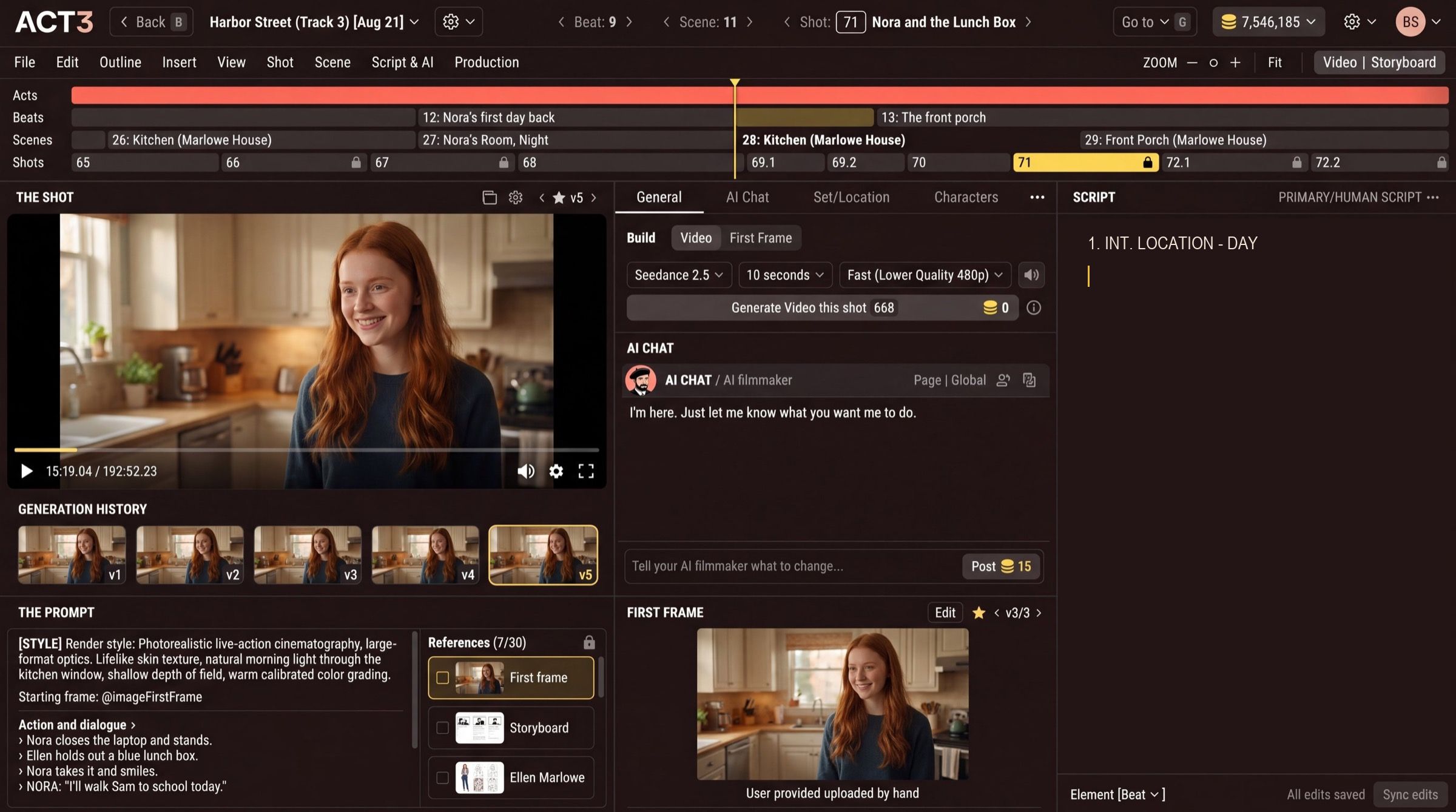 Your empty script
The SCRIPT pane as it looks on a new empty script. The rest of the picture is a film already in progress; on a new film the timeline fills in as you write.
What this page is
The Editor is where the film is made. On a new empty script the SCRIPT pane holds one scene heading, 1. INT. LOCATION - DAY, and an empty line under it. Nothing else is written yet, so there are no scenes or shots to film.
- SCRIPT (right): your screenplay. Everything else in the Editor is built from it.
- AI CHAT (middle): your AI filmmaker. Ask it to write or change the script.
- The timeline (top): Acts, Beats, Scenes and Shots. It fills in as the script grows.
- THE SHOT (left): the video of the selected shot, once one is built.
The first line is a scene heading, the way a screenplay names a place and a time. Replace LOCATION with your place and DAY with the time, for example INT. KITCHEN - MORNING.
Why you go next to writing
A film needs words before it needs pictures. Next you put the first scene into the script.