Step 3 of 8
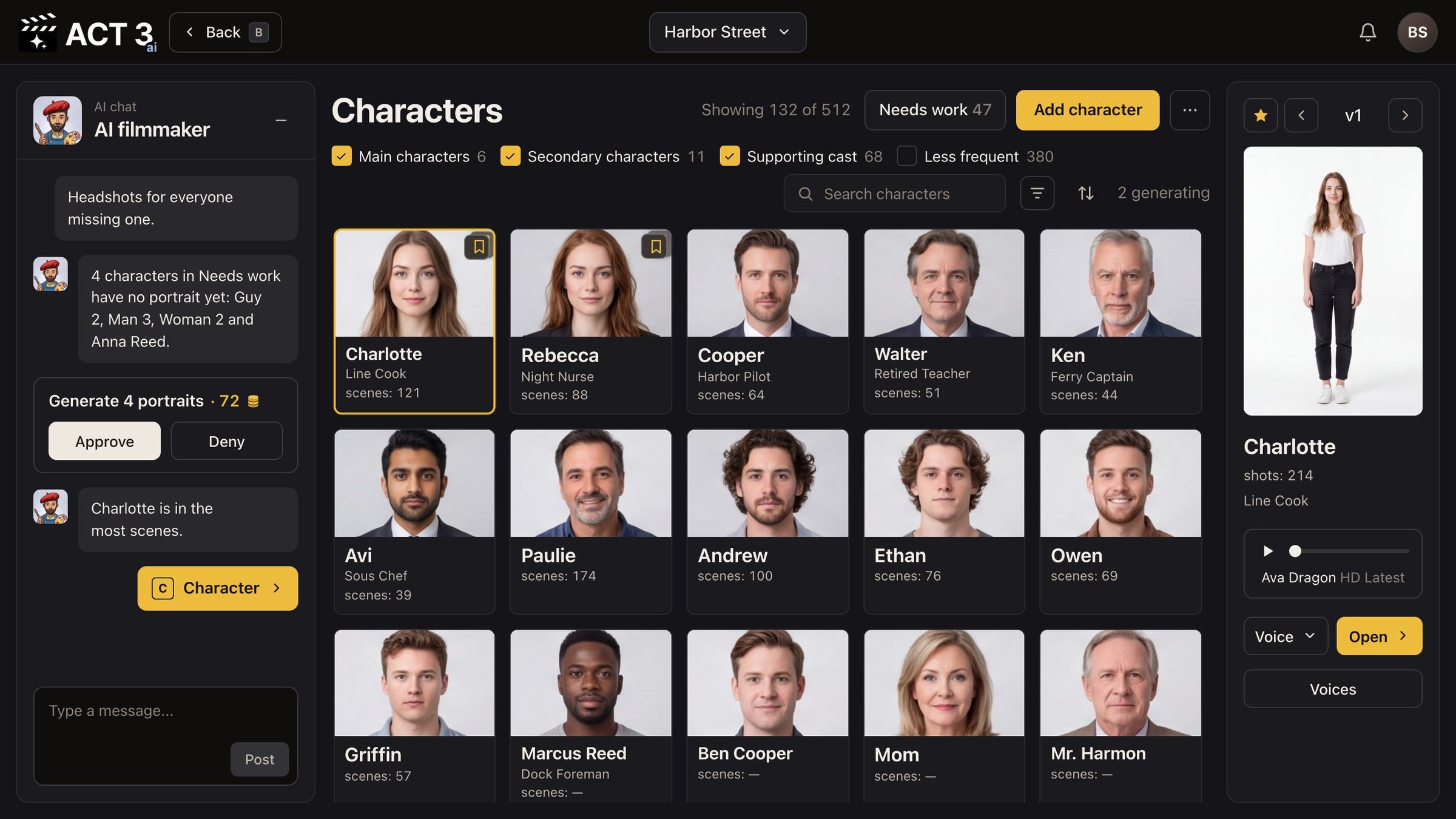
Click Add character
Click Add character, the yellow button at the top of the cast wall. ACT 3 AI asks how to make the look. Choose You upload your own photos.
Add character, then the right-hand card: You upload your own photos (uploading is free).
What this page asks
Add character is the most important button on the Characters page. It starts a new character for this film. ACT 3 AI then asks one question: Would you like us to create your characters?
Your decision: your photos, or ACT 3 AI draws the look
You upload your own photos (this guide). Pick it when you already know the face: an actor's headshot, a photo from a table read, your own reference art. Uploading is free. ACT 3 AI builds the character sheet from your photo, so the character looks like the person you chose.
We create the character sheets. Pick it when you have no photo and want ACT 3 AI to invent the face from the script and your description. That path is guide 9, AI-Built Character.
Click the right-hand card, You upload your own photos. The upload page opens.
In today's app, Add character opens a short form: the character's name, their role, and a place to upload the character's image and reference photos. The goal is the same: name the character, then give ACT 3 AI the photo to build from.
Why you go next to the upload page
The upload page is where your photo meets the character. You drop it on that one person, so it never lands on the wrong face.