Step 3 of 8
Add and describe a character
Click Add character, the yellow button at the top of the cast wall. Name the character and describe the look in words. Click Add character; adding is free.
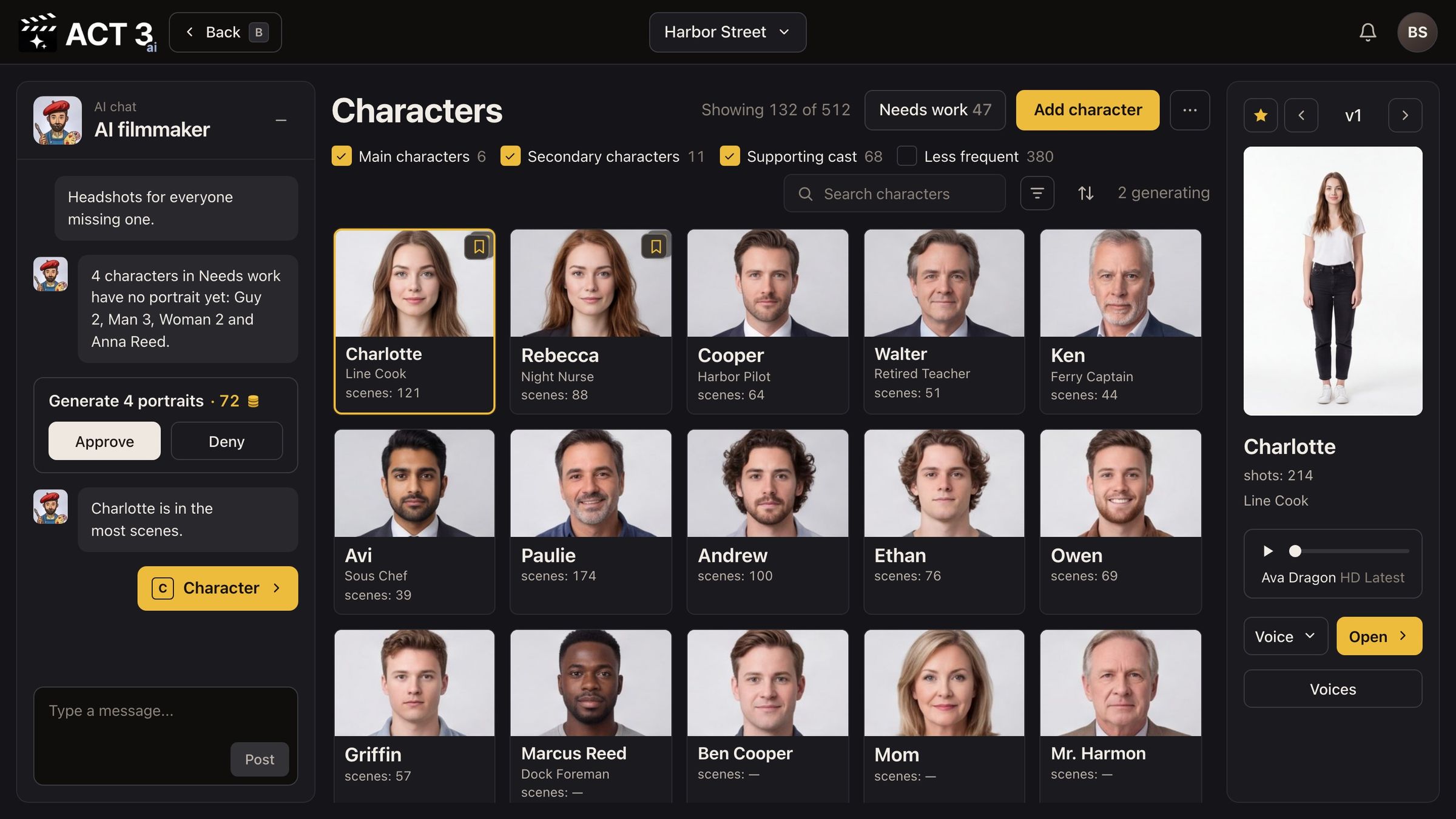
What this window is
Add character opens a short form. It creates the character in your film, free of charge. Nothing is generated yet: the pictures come after you have seen the price.
- Character name, the way it is written in your script.
- Job title, a few words that place them in the story (it shows under the name on every tile).
- Importance: Main, Secondary, Supporting or Less frequent. It decides which group the tile sits in on the cast wall.
- Appearance: the look, in plain words. This is what ACT 3 AI builds the character sheet from.
How to describe the look
Write it like a casting and wardrobe note, top to bottom, in one look:
- Age and build. "Early forties, tall, wiry."
- Face. Skin, eyes, anything a camera would hold on: freckles, a scar, laugh lines.
- Hair. Color, length and how it is worn.
- Wardrobe. The outfit they wear most, down to the shoes. Other outfits come later in the Wardrobe.
Leave out the lighting, the location and the camera angle. The sheet is always shot on white seamless, so it works as a clean reference in every scene.
You can also just tell the AI filmmaker on the left: "Add a new character: Juniper Hale, a tugboat pilot in her early forties…". It creates the character the same way.
Where you go next
Click Add character at the bottom of the window. ACT 3 AI then asks how to make the look.