Step 7 of 8
Open the Image Builder
To change the look, open the ⋯ menu at the top right of the character sheet. Choose Modify in Image Builder. The Image Builder opens on this character's headshot.
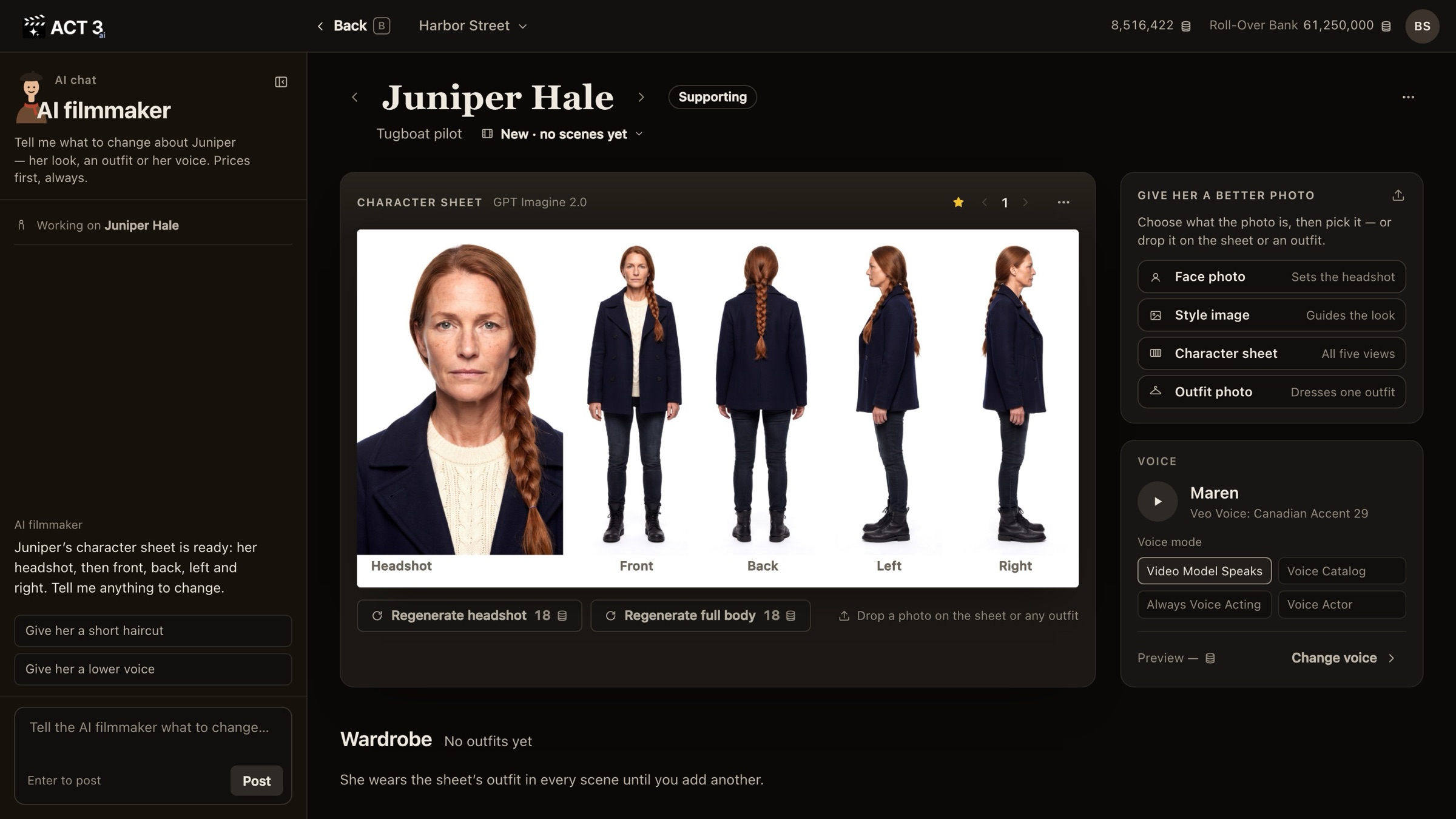
Getting there
- On the character's page, click the ⋯ at the top right of the character sheet.
- Choose Modify in Image Builder. The Image Builder opens with this character loaded.
What the Image Builder is
It is the one place in ACT 3 AI where you shape a single picture. For a character it opens on the headshot, with Save to: character and the character's name in the top bar, so whatever you keep goes back to this character.
- AI chat (left): say the change in plain words; the AI filmmaker rewrites the prompt for you.
- The prompt (middle): the full description the picture is built from, which you can also edit by hand. Build sits on top with its price.
- The takes (right): the current version, with ★ and the version arrows above it.
- Include images: the references sent with the prompt. The current headshot and character sheet are ticked so the face stays the same.
Some versions of the character page show a yellow Edit in Image Builder › button right above the sheet (the picture in step 2). It opens the same Image Builder.
The menu at the top right of the character page (⋯) holds Edit character too. That one opens the character's details form (name, job title, role), not the Image Builder.