Step 4 of 6
Start a new project
Start your first project from the Start your next film panel. Pick the kind of film in the Start creating a dropdown. Then click the yellow Start Creating button.
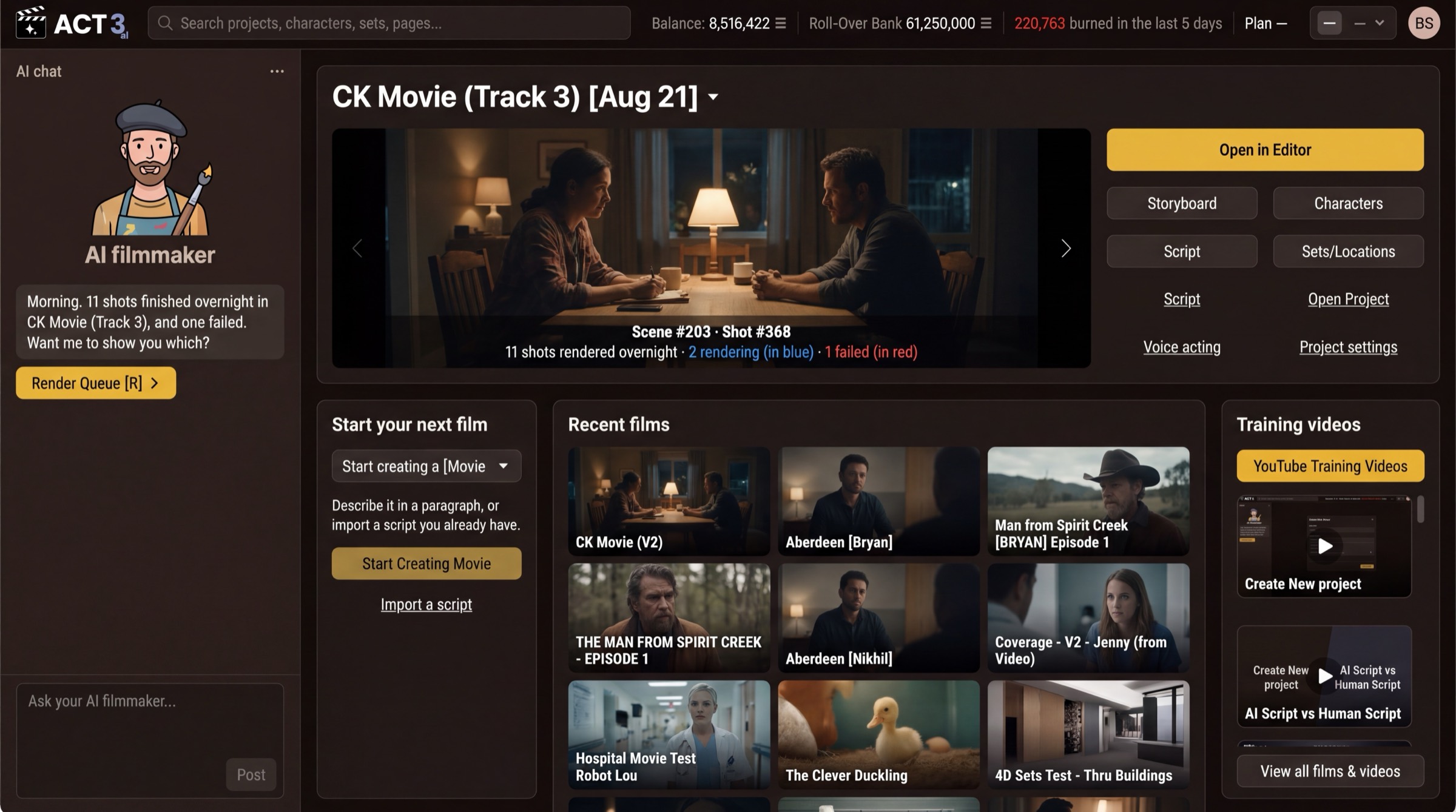
What this panel does
Start your next film is the door to the New Project wizard. The wizard walks you through a film's setup one page at a time, with a CONTINUE button at the top and bottom of every page.
- Open the Start creating a dropdown and choose what you are making: a Movie, a Series, a Short, an Ad, a Music video or a Trailer.
- Click the yellow button. Its label follows your choice: Start Creating Movie, Start Creating Ad, and so on.
Your decision
What kind of film? Pick the closest match; it only pre-fills the wizard and you can change the project later. If you are unsure, pick Movie.
Already have a screenplay file? The Import a script link under the button is a shortcut straight to the upload page. If this is your first project, use the yellow button anyway: the wizard asks about your script on the very next page.
Some versions of Home name this button Create new project. It does the same thing. You can also type "start a new film" to the AI filmmaker.