Step 1 of 7
Open the Storyboard from the View menu
In the Editor, click View in the menu bar near the top. Choose Project Storyboard. Your whole film opens as storyboard frames, one per panel.
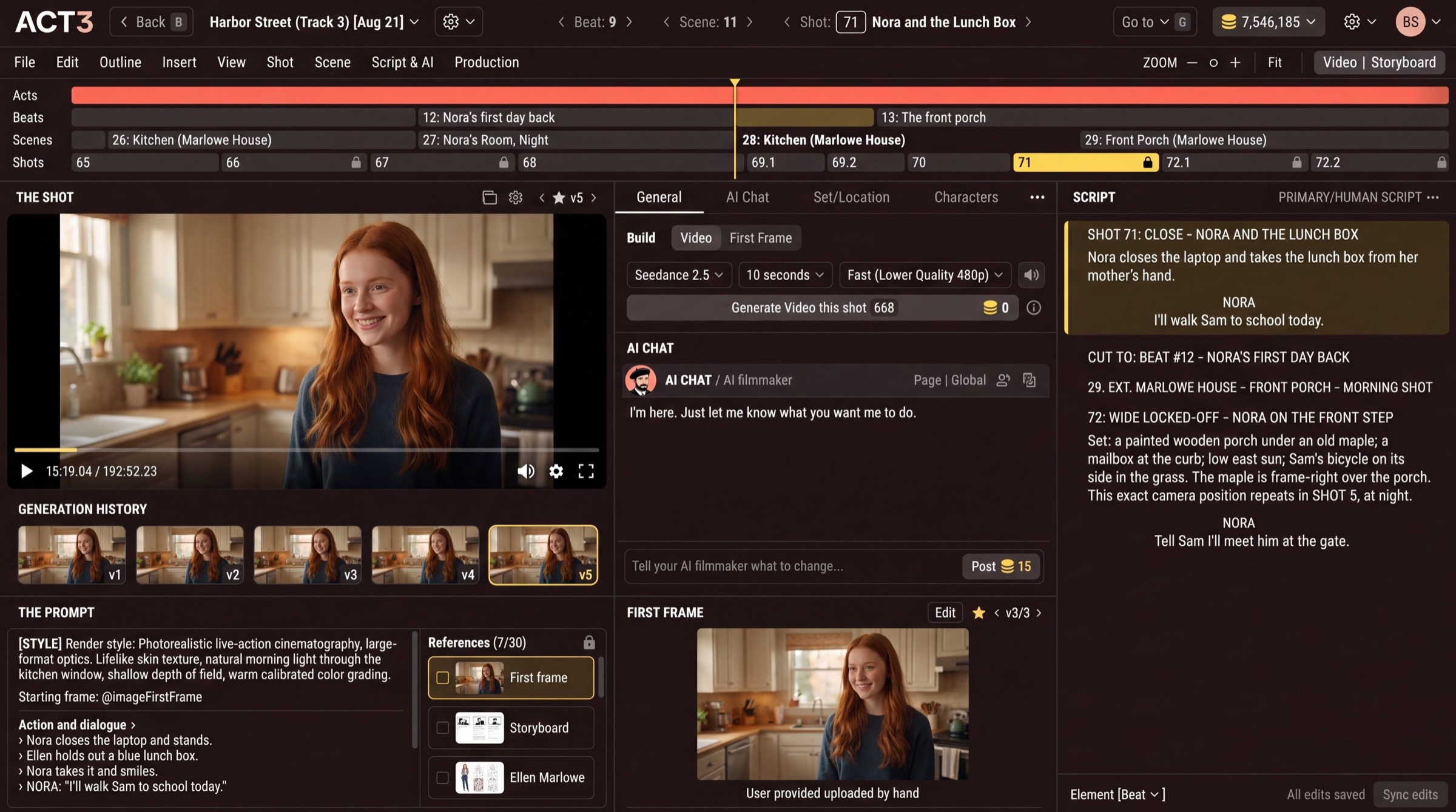
View › Project Storyboard: the menu bar sits under the top bar, left of the timeline.
Where to find it
The Project Storyboard lives inside the Editor. Open your project, then look just under the top bar: the menu bar reads File Edit Outline Insert View Shot Scene Script & AI Production.
- Click View. The menu drops down.
- Click Project Storyboard, below Visual Debugger and Storyboard Panels Editor.
- The Editor changes to the Storyboard: every video shot of the film as a wall of frames, with the same timeline across the top.
Your decision: the whole film, or one shot
Project Storyboard opens the whole film. Pick it to review coverage scene by scene, or to create storyboards for everything at once.
Storyboard Panels Editor, just above it, opens the same Storyboard on the shot you have selected. Pick it when you are working on one shot and want only its panels.
Creating the storyboards from here
If your film has no storyboards yet, the frames show no storyboard yet with a Generate button. Generate all at the top draws every missing frame at once. Each button shows its coin price before anything runs, so you decide first.
Other ways in
- Starting a new project? The New Project wizard offers to storyboard the whole film. Steps 2 and 3 show that path.
- Already in the Editor? Ask the AI chat for the storyboard, or use the view switch at the top right. Step 4 shows both.
Where you go next
Continue walks through the whole path in order. If your film already has storyboards, jump to step 5, Read it shot by shot.