Step 6 of 7
Redo a frame you don't like
Select the tile you want to change. Right-click it and choose Rebuild storyboard image, or click Edit › to fine-tune it. Empty or failed tiles show Generate or Retry.
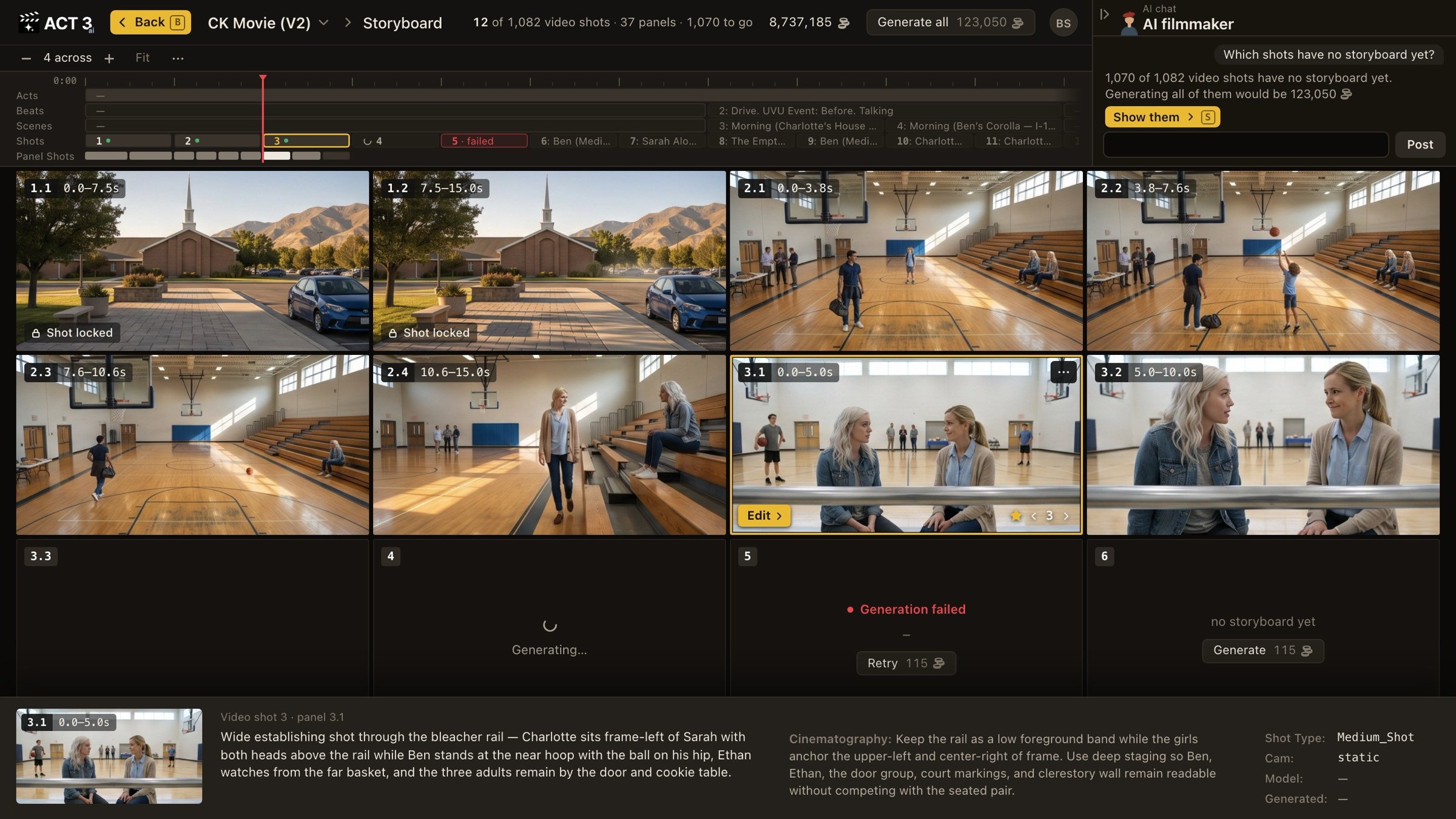
Fix one frame, not the whole board
Every tile is its own storyboard image, with its own versions. Changing one never touches the others.
Your decision: rebuild, fine-tune, or ask
Rebuild storyboard image (right-click the tile) draws a new version from the same panel description. Pick it when the idea is right and the drawing is off: a stray hand, a wrong angle. Each build shows its coin price before it runs and adds a new version, so the old one is never lost.
Edit › opens the panel in the Image Builder, where you change the prompt and the reference images and generate again. Pick it when the framing itself is wrong, or a character or set does not match. Guide 6 walks through the Image Builder.
Ask the AI filmmaker (also in the right-click menu) puts a question about this panel into the chat, for example whether it shows the action the script gives it. Pick it when you are not sure what is wrong.
Tiles that are not finished
- Generating… the frame is being drawn now. Wait for it.
- Generation failed click Retry to draw it again for the price shown.
- no storyboard yet click Generate. To fill every empty tile at once, click Generate all at the top.
A tile with the Shot locked badge cannot be rebuilt until its video shot is unlocked from the same right-click menu.
Where you go next
Once a frame has a version you like, you keep it. That is the last step.