Step 2 of 6
Build the shot's video
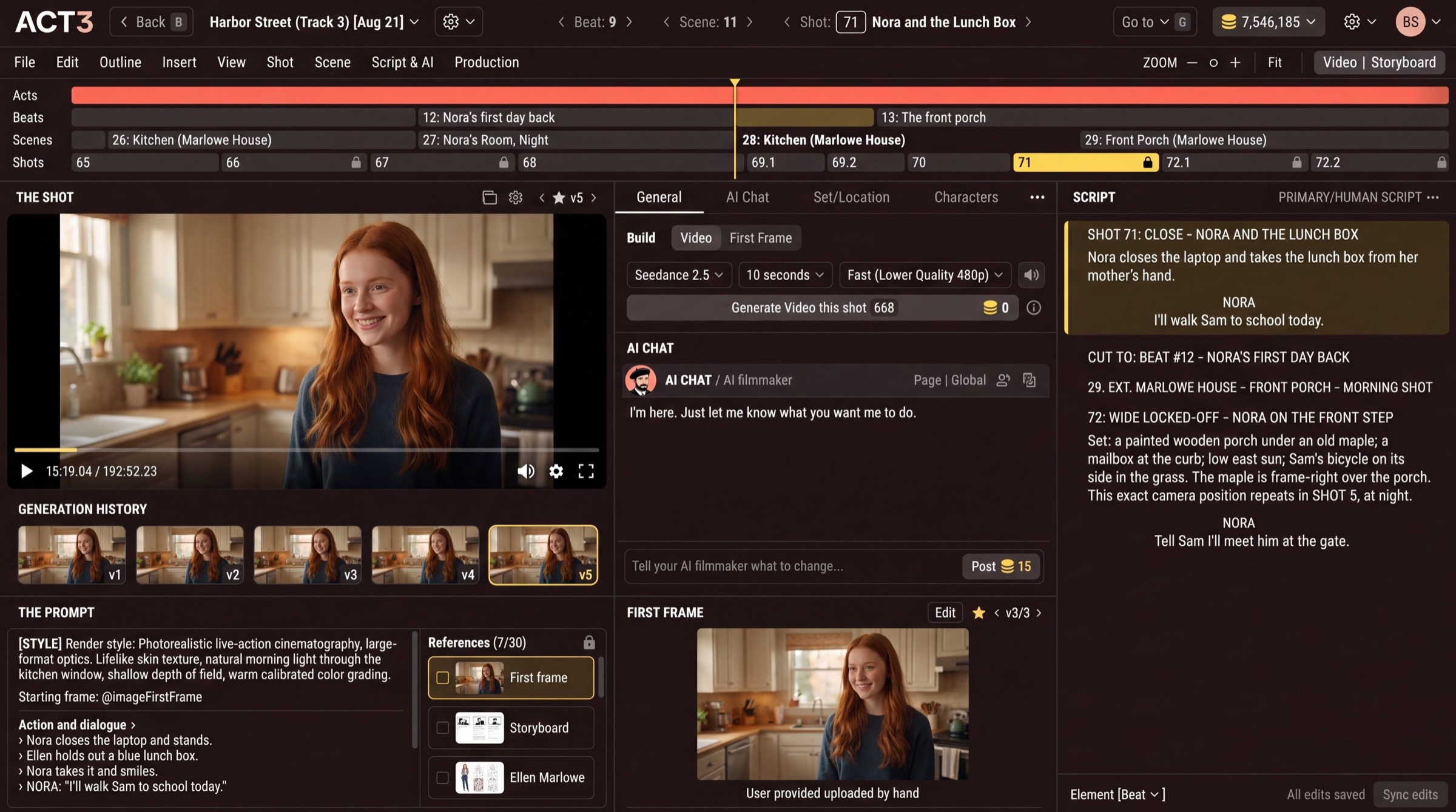
Turn this shot's prompt and first frame into a video take. In the middle column, check Video, the model, length and speed. Click Generate Video and note the credit price on the button.
What this panel is
The Build controls sit at the top of the middle column, on the General tab. They turn the shot's prompt, its first frame and its checked references into a new video take.
- Choose Video. (First Frame builds only the still picture the video starts from, which costs far less.)
- Pick the model, for example Seedance 2.5.
- Pick the length, for example 10 seconds. Match it to the action and dialogue in the script.
- Pick the speed: fast and cheaper, or higher quality.
- Click Generate Video this shot. The coins and number on the button are what it costs, before you click.
Your decision: fast or quality
Use a fast, lower-resolution setting while you are still finding the shot: checking the action, the timing, the blocking. Switch to a quality setting once the shot is right and you are building the take you will keep.
More than one shot
Advanced opens the rest of the build options, including what to build: this shot, a whole scene, a key beat, an act or every shot. The button then names what it builds and prices all of it.
Why you go next to reviewing the take
Each build adds a new take; it never overwrites the old one. When it finishes, you judge it against the script before you spend more.