Step 1 of 6
Meet the Editor
The Editor is where you finish your film, one shot at a time. Find the timeline on top and the three columns below it. Then press Continue to build your first video.
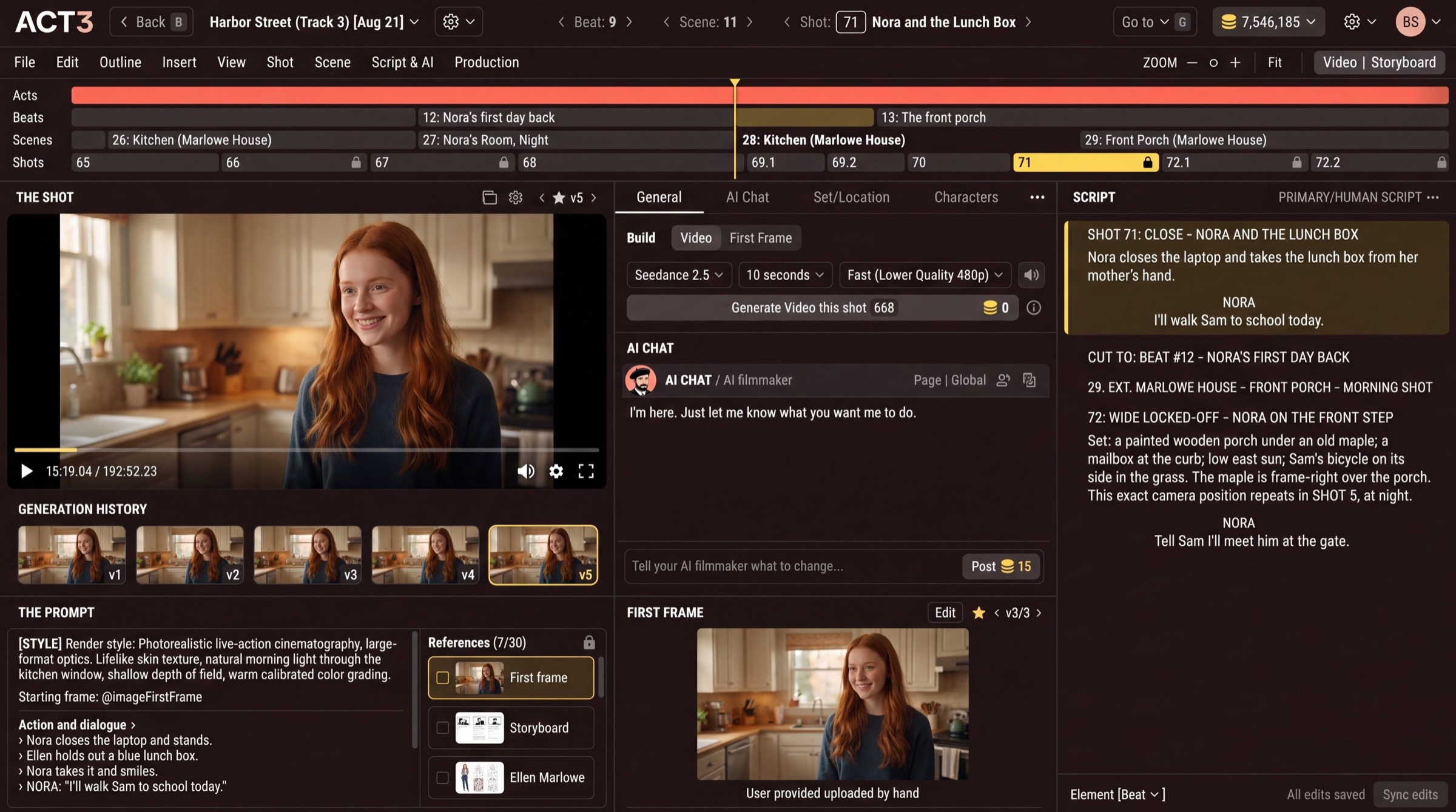
What this page is
After the wizard finishes, every project lands here. The Editor puts one video shot in front of you, with everything that decides how it comes out laid side by side. Whatever shot is selected, every panel shows that shot.
What to look at
- Top bar. The Beat, Scene and Shot steppers tell you where you are, and ‹ › step to the next one. Go to jumps to any page of your film. Your credit balance sits on the right.
- Timeline. Four rows: Acts, Beats, Scenes, Shots. The yellow line is the playhead; the yellow shot is the one you are on.
- Left column. THE SHOT plays the current video take. Under it, GENERATION HISTORY keeps every take, and THE PROMPT with its References is what the video model is told.
- Middle column. The Build controls, the AI CHAT with your AI filmmaker, and the FIRST FRAME the video starts from.
- Right column. The SCRIPT, with the current shot's block highlighted, so you can always check the picture against the page.
A shot is one camera setup: one prompt, one video take of up to about 15 seconds. A scene is a run of shots in one place and time. A beat is one turn in the story.
Why you go next to building a video
A shot with a good first frame is ready to become moving picture. If the first frame is not right yet, fix it first in the guide Improve First Frame: a better starting picture means fewer video builds.