Step 6 of 6
Move through the timeline and play
Zoom the timeline from a two-hour movie down to a few frames. Click any act, beat, scene or shot to go there. Press play to watch your film run.
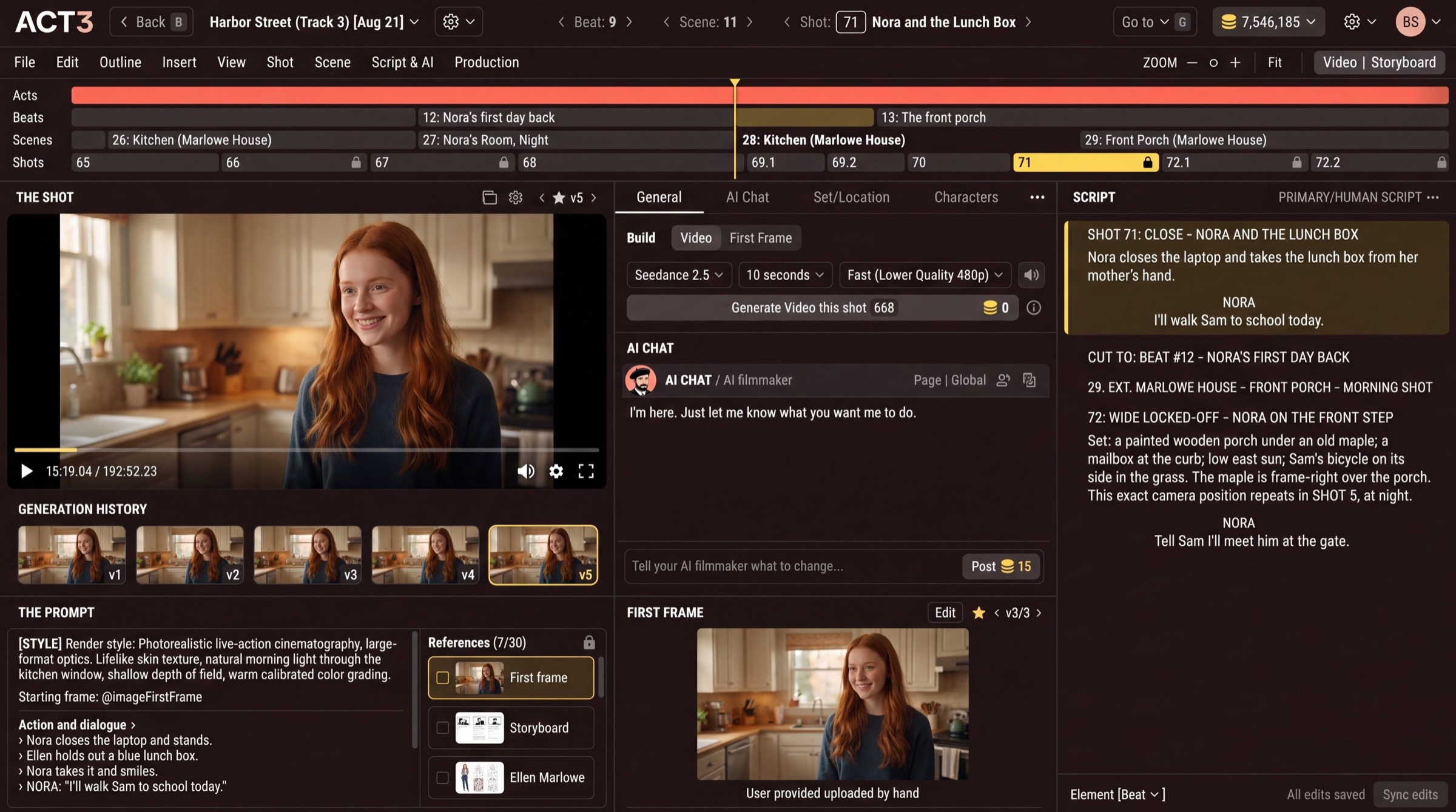
One editor for any length
The same timeline holds a two-hour movie or a three-minute video. Zoom out with ZOOM – or Fit to see the whole film; zoom in with + until single shots, and then a few frames, fill the bar. The playhead stays put as you zoom.
Ways to move
- Click a shot, scene or beat to jump to its start. Drag on the timeline to scrub.
- Double-click an act, beat or scene to open its own page.
- Steppers: ‹ Beat ›, ‹ Scene ›, ‹ Shot › in the top bar.
- Keys: Alt + ← / → steps shots, Shift + ← / → steps scenes.
- Video | Storyboard at the right of the menu row switches to the storyboard of the same film (see Storyboard).
Play it back
Press play under the video (or Space). The playhead runs forward and the whole page follows it, shot after shot, so you see the cut the way an audience will. Watch for jumps between shots: a change in light, wardrobe or screen direction is your next fix.
The loop you will repeat
Move to a shot, review the take, change the script or first frame if needed, build, and move on. That loop, shot by shot, is how the whole film gets made.
You have finished this guide
Continue returns you to the Step-by-Step Guide. Next, try Improve First Frame or Storyboard.