Step 2 of 7
Open First Frame in the Image Builder
Open the Image Builder for this shot's first frame. Click Edit at the top of the FIRST FRAME card. The Image Builder opens on this one shot, ready to rebuild its first frame.
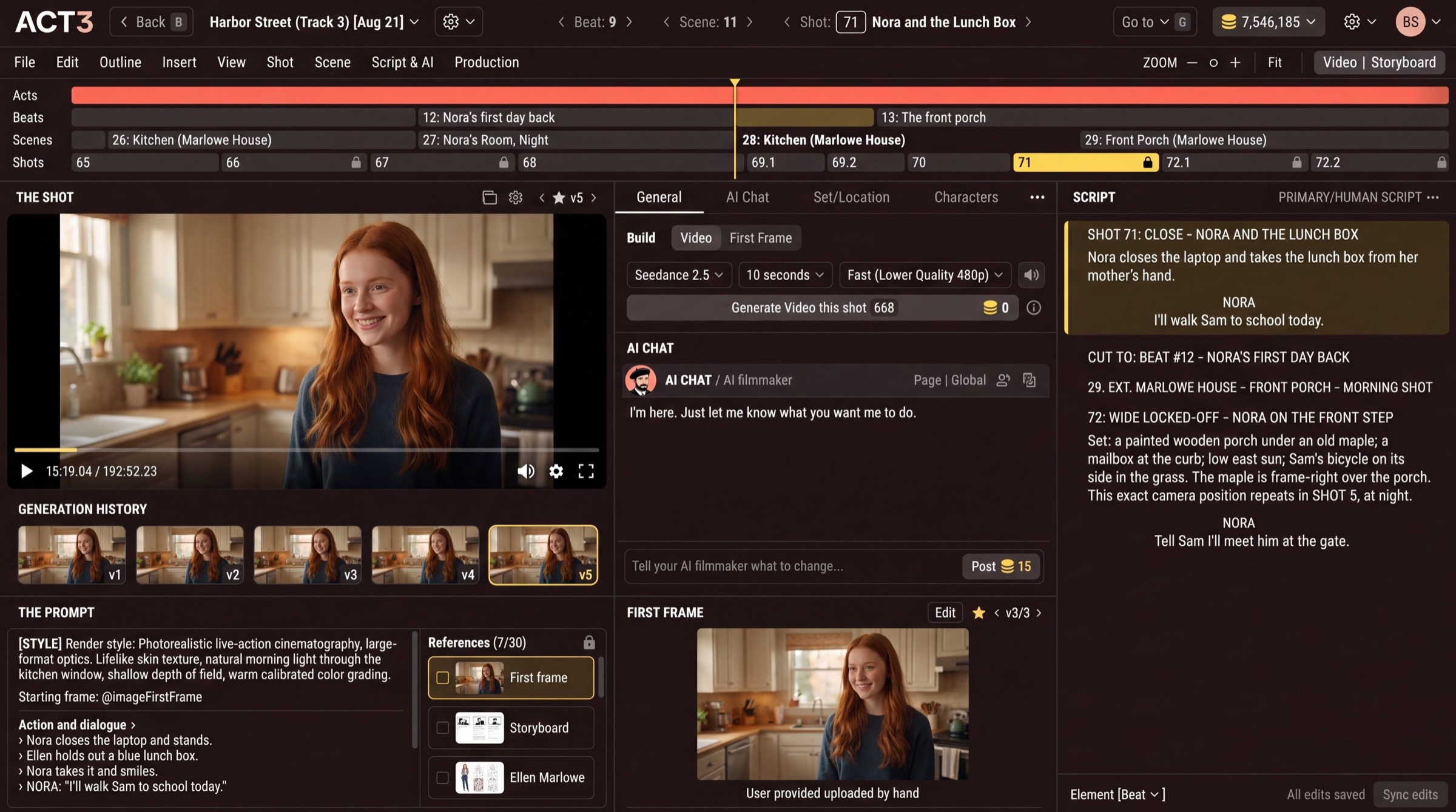
The Image Builder, and why you go there
The Image Builder is the page where you hand-build one image. Opened from the FIRST FRAME card, it builds the first frame of the shot you are on, and nothing else. It gives you the full prompt, every reference image going into the build, four takes per build, and every earlier version.
Other ways in: View › Image Builder in the Editor's menu row, or the First Frame › button the AI chat offers when you ask it about a frame.
In today's app the button may read Open in Image Builder, and the Image Builder opens in a new browser tab. Your Editor stays open in the first tab.
Your decision
Quick redo, or hand-build? For a quick new attempt, use the Editor's own Build › First Frame tab: the AI builds a new first frame without leaving the Editor. When you need control (which references go in, what the prompt says, which of four takes to keep), use Edit and the Image Builder. This guide takes the Image Builder path.