Step 3 of 7
Read the Image Builder
First check the top bar: it says where your image saves and which shot. Then study the frame on the right, the prompt beside it, and the references below. Find what makes the frame wrong before you change anything.
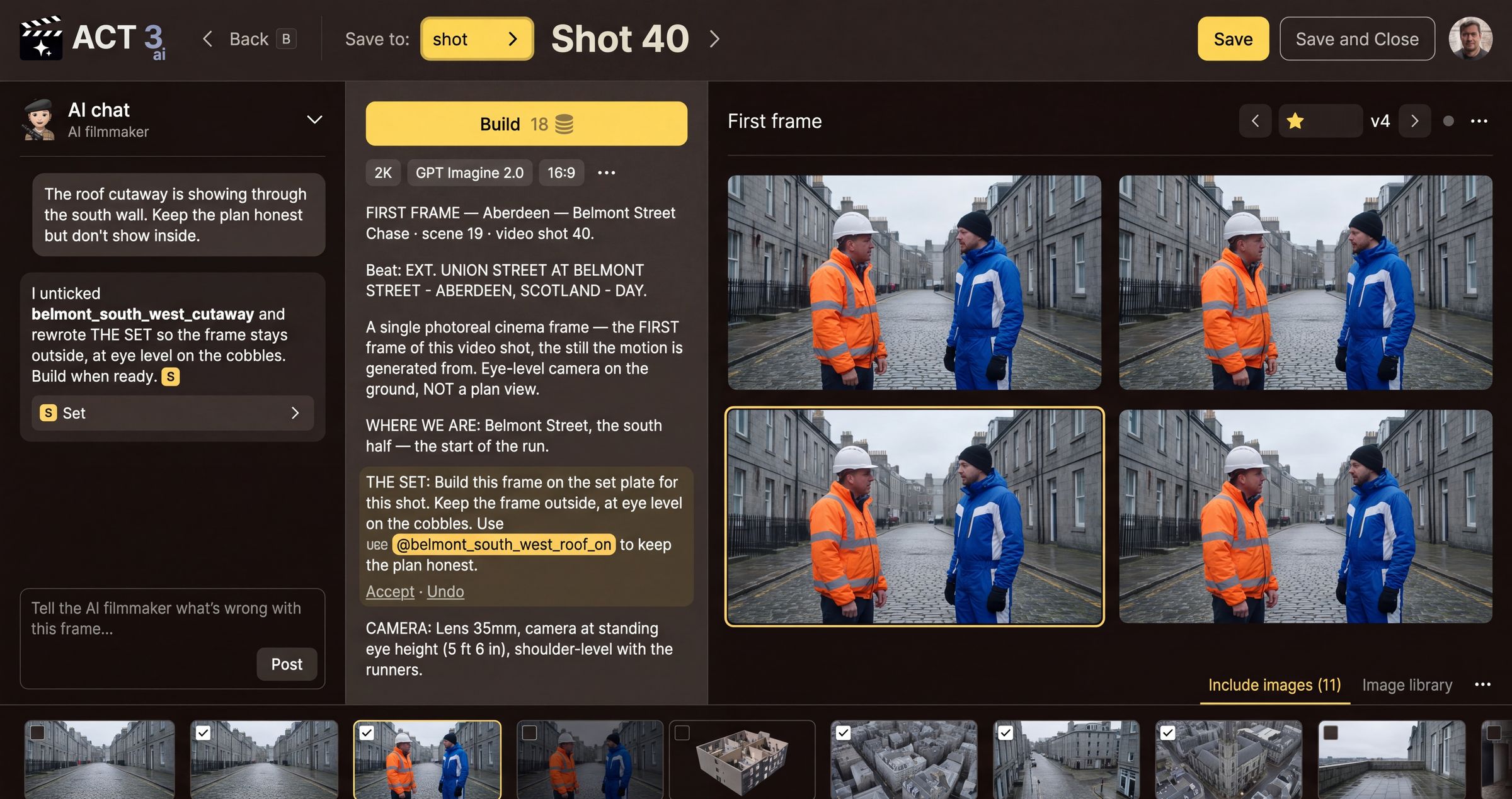
What you are looking at
The Image Builder changes one thing: the first frame of one shot. Read it left to right.
- The top bar is a sentence: Save to: shot › Shot 40 ›. It tells you where the image will be saved, and for which shot. A wrong shot means credits spent on the wrong frame, so read it every time. Save and Save and Close sit at the right.
- AI chat (left): your AI filmmaker. Tell it what is wrong, and it changes the prompt and the references for you.
- The prompt (middle): the words the image is built from, in labelled paragraphs (where we are, the set, the camera). Build sits on top, with its price, and the chips for resolution, model and frame shape (2K GPT Imagine 2.0 16:9).
- First frame (right half): the takes of the current version, the selected one ringed in yellow, and the version stepper ‹ ★ v4 ›. The star marks the version the shot's video will use.
- Include images (bottom): the reference images going into the build: set plates, character sheets, earlier frames. A ticked box means it goes in. Image library holds the rest of your project's images.
Find the cause first
Before you change anything, find why the frame is wrong. The usual causes are three:
- A wrong reference is ticked, such as an aerial plan of the set with the roofs taken off.
- A prompt paragraph asks for the wrong thing: the wrong camera height, lens, place or time of day.
- A missing reference: no character sheet is ticked, so the costume drifts.