Step 6 of 7
Save and Close
Keep your pick as the shot's first frame. Press Save to keep it and stay, or Save and Close to keep it and go back. Check the top bar first: it should still say Save to: shot and your shot.
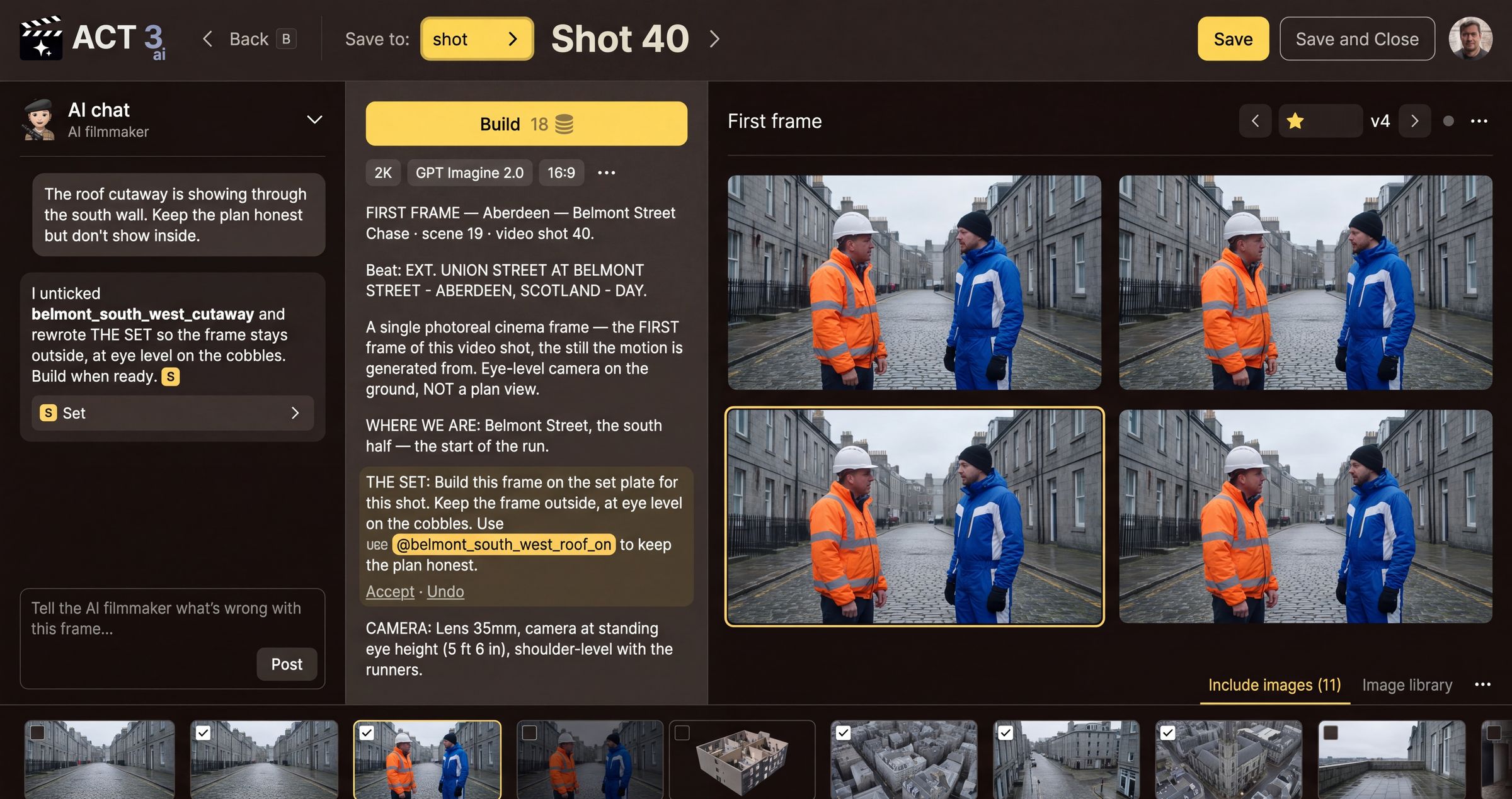
Two ways to keep it
- Save keeps the selected take as this shot's first frame and stays on the page. Use it when you will keep working: another build, or the next shot.
- Save and Close keeps it and takes you back to where you came from, the Editor on the same shot.
- ‹ Back (or the B key) leaves without saving. If you have unsaved work, it asks first.
In today's app the second button reads Save & Back, and Save stores the prompt onto the version on screen. Star the version you want with ★ before you leave: the starred version is the first frame the video uses.
Your decision
More shots to fix? Press Save, then open the Shot 40 › menu in the top bar to step to the next shot of the scene, and repeat steps 3 to 5. Done for now? Press Save and Close and go back to the Editor to generate the video.