Step 7 of 7
Back in the Editor
You are back in the Editor on the same shot. The FIRST FRAME card now shows your new frame, starred. Now generate the video from it, or move on to the next shot.
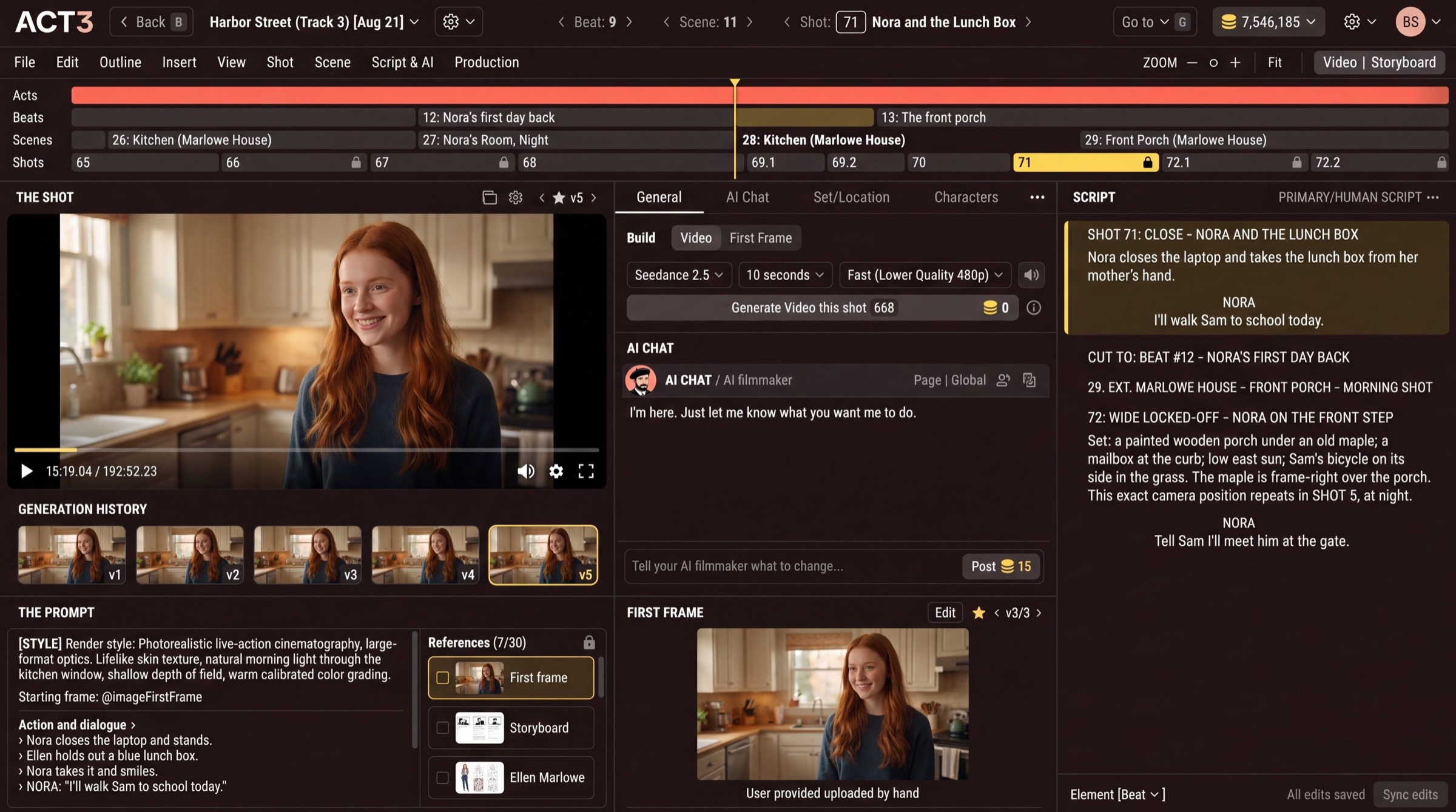
What changed
The shot's FIRST FRAME card shows the take you saved, and its star marks it as the version in use. Use ‹ and › on the card to flip back to an earlier version at any time. The shot, the script and the timeline are where you left them.
Where to go next
The point of a better first frame is a better video. In the Build area, keep Video selected, choose the model and length, and press Generate Video this shot. The price is on the button. The video now starts from the frame you built, so the composition, set and costumes are right from the first second.
Then step to the next shot on the timeline and judge its first frame the same way. Guide 7, Build Videos, walks you through generating, reviewing takes, and moving through the timeline.
If you opened the Image Builder in a new browser tab, the Editor is still open in your first tab. Switch back to it to see the new frame.